Installation Guide for MT5Guard
Step 0: Account Authorization
⚠️
Prerequisite: You must link your MT5 account on our website BEFORE running the software on your VPS.
Step 0: Account Authorization
REQUIRED Link Your MT5 Account
To activate your subscription, our system needs to authorize your specific MT5 Account ID. Without this step, the Guard tool will not be able to verify your license.
Login to your Client Portal to manage your MT5 accounts:
Go to Client PortalHow to set it up:
- Log in to your Member Dashboard on our website.
- Navigate to the "MT5 Account Management" or "Subscription Plans" section.
- Enter your MT5 Account Number (the Login ID you use to sign in to MetaTrader 5).
- Click "Save" or "Link Account".
* Note: Changes may take up to 1-2 minutes to synchronize with the Guard server.
Step 1:MT5Guard Installation
Power MT5Guard Installation Guide
1
Transfer File to VPS
Copy the
PowerMT5Guard Setup.exe from your local computer and paste it onto your Windows VPS Desktop via Remote Desktop (RDP).
2
Run Installation
Right-click the installer and select "Run as Administrator".
Note: The program automatically detects your MT5 installation path. To manually adjust it, edit the
config.ini configuration file in the installation directory.
3
Activate Your Account
Launch
Power MT5Guard.exe and enter your Username and Password associated with your PowerMT5Guard Plan to log in.
🔑 Please ensure you use the credentials created during your purchase/subscription.
4
Verification & Success
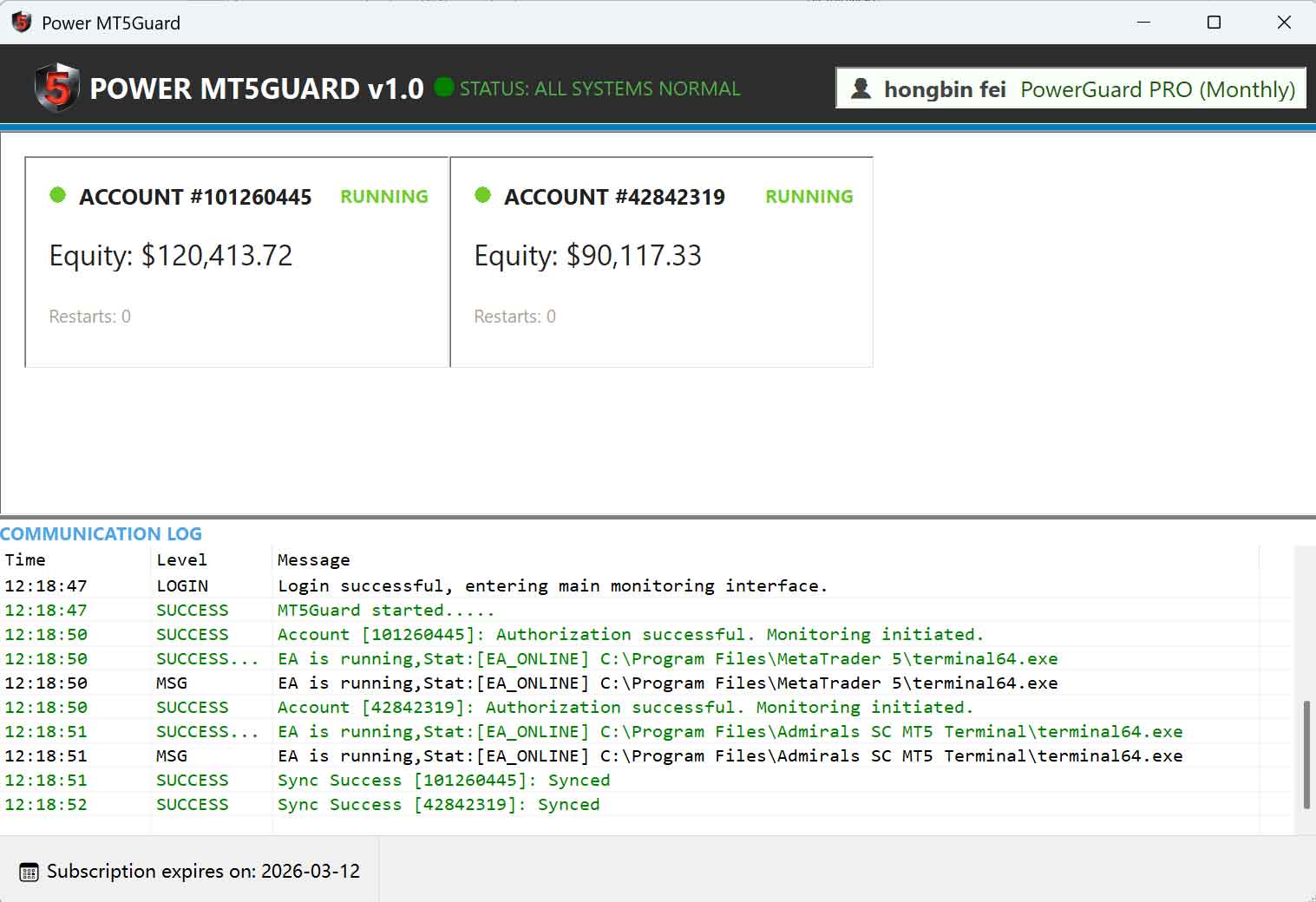
Power MT5Guard operates as a Standalone Dashboard (not an EA plugin).
SYSTEM READY
SYSTEM READY
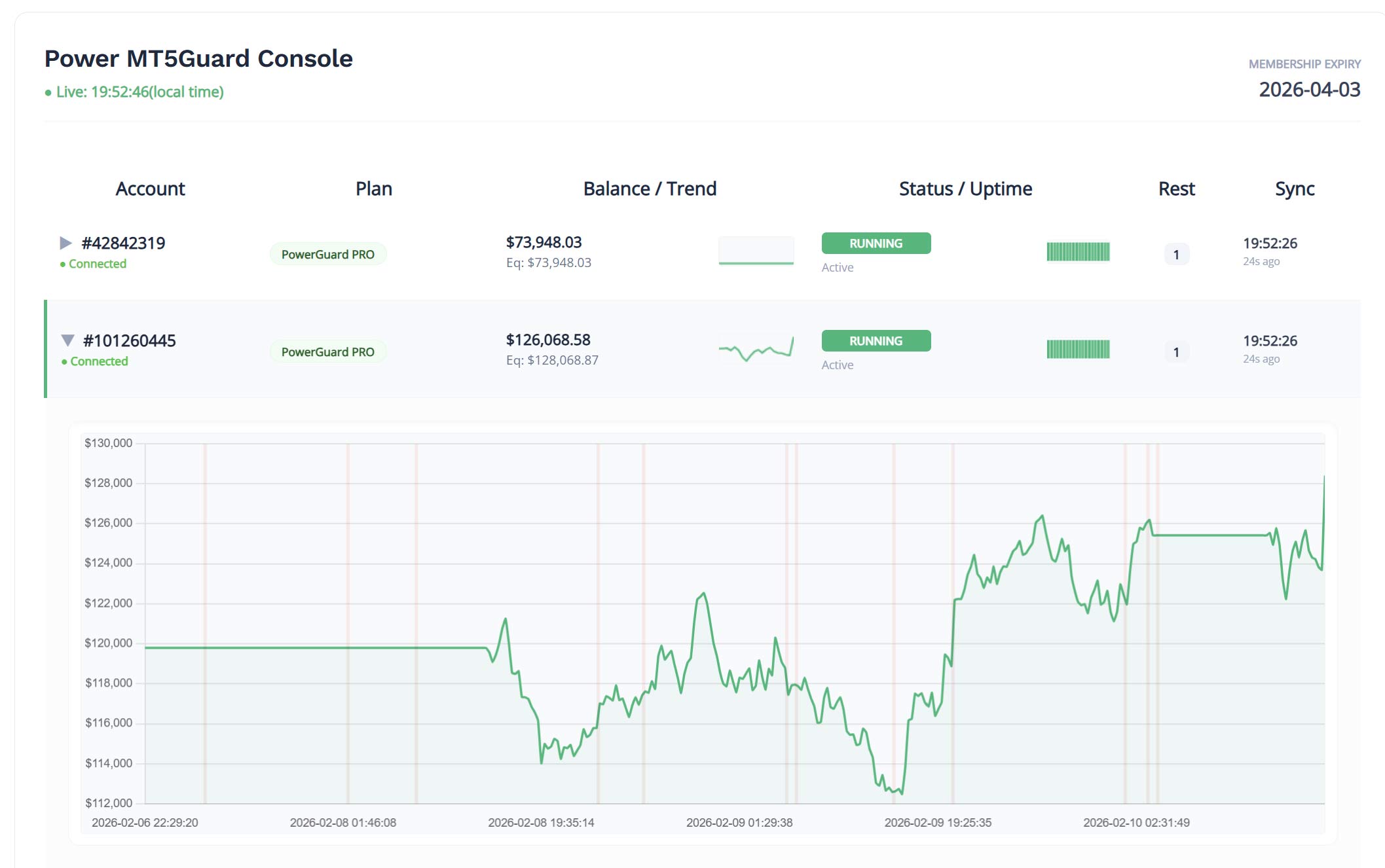
If the dashboard displays your Live MT5 Status and Subscription (Bind) Details after login, the installation is successful.
Step 3: Install MT5GuardHeartbeat indicator
Indicator Setup: MT5GuardHeartbeat
Follow these steps to enable heartbeat monitoring on your MT5 terminal.
1
Open MT5 Data Folder
Launch your MT5 terminal. Go to File → Open Data Folder. A Windows Explorer window will automatically pop up.
2
Navigate to Indicators
In the pop-up window, browse to the following directory:
MQL5 > Indicators
3
Transfer Heartbeat File
Copy
MT5GuardHeartbeat.ex5 from your portal and Paste it into the Indicators folder.
Example Path: C:\Users\YourUser\AppData\Roaming\MetaQuotes\Terminal\...\MQL5\Indicators
4
Refresh & Attach
Return to MT5. In the Navigator panel (
Ctrl+N):
- Right-click Indicators and select Refresh.
- Locate
MT5GuardHeartbeatand Drag & Drop it onto any active chart.
5
Verify Status
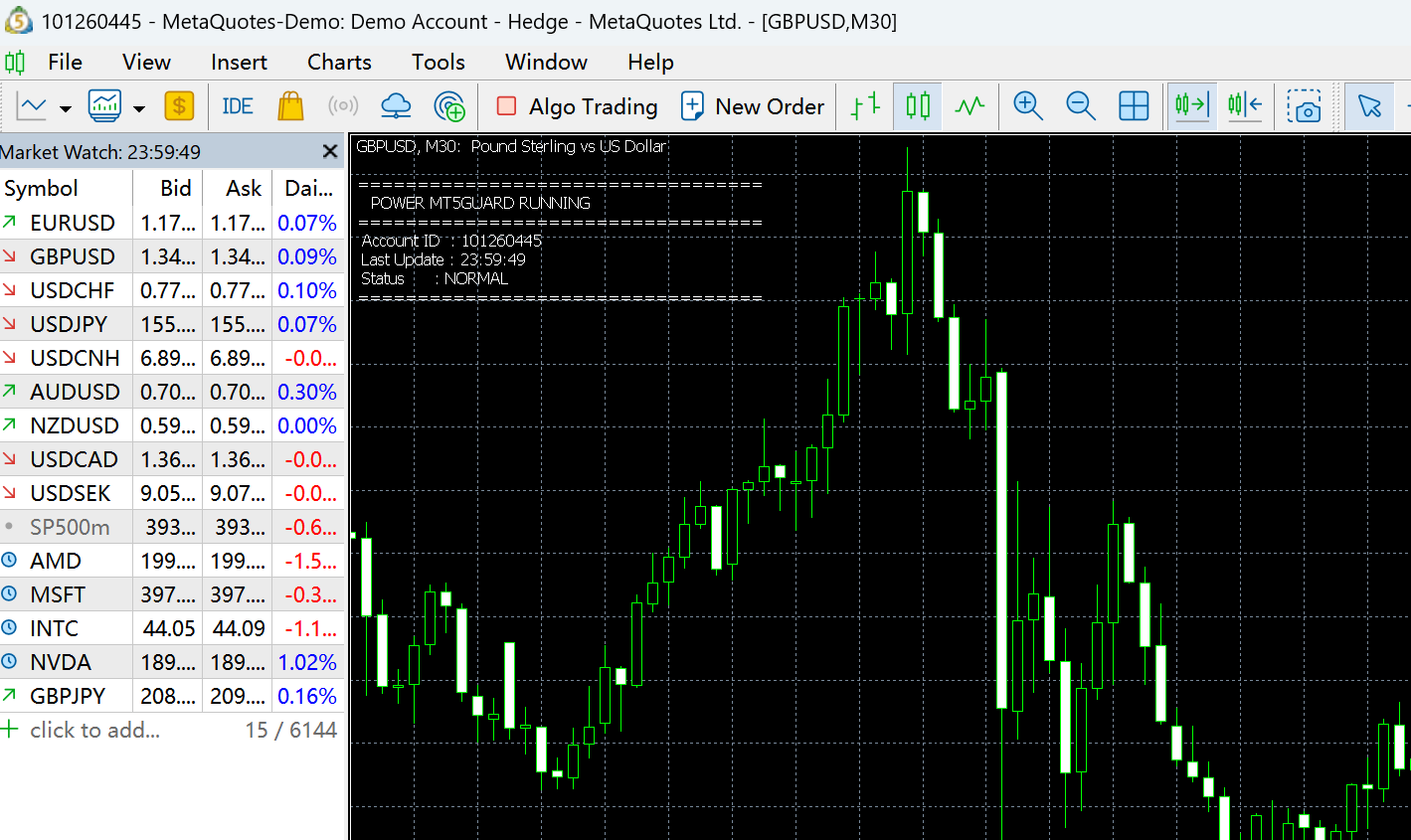
Check the chart overlay for confirmation.
✅ Status: NORMAL — This message confirms the heartbeat is recorded and the connection is stable.
Quick Reminder:
As mentioned before, indicators run automatically once attached. You do not need to enable the "Algo Trading" button for them to work.
System Requirements
- Metatrader 5.0 for Windows
- Windows: Windows 7, 8, 10, or 11 (Windows 10 64-bit recommended)
- Intel Celeron-based Processor, with a frequency of 1.7 GHz or higher
- 256 MB of RAM 50 MB of free disk space